Atom
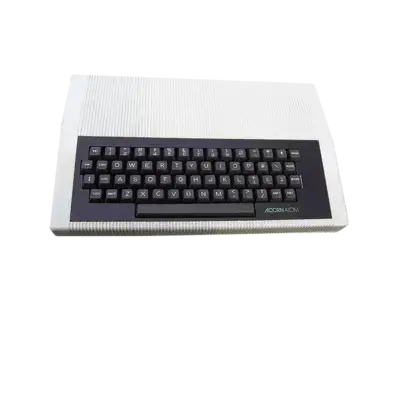

Overview
The Acorn Atom is a compact home computer introduced in 1979 by Acorn Computers. It featured an 8-bit design that bridged the gap between the BBC Micro's predecessors and the later BBC series, and it remains valuable among collectors due to its minimalist keyboard, expandable RAM and strong BASIC support.
In REG-Linux the system uses the atom group so metadata and aesthetics can match the platform’s artwork set.
Technical specifications
- Manufacturer: Acorn Computers
- Release year: 1979
- Hardware type: computer
Supported ROM extensions
wav, tap, csw, uef, mfi, dfi, hfe, mfm, td0, imd, d77, d88, 1dd, cqm, cqi, dsk, 40t, atm, bin, rom, zip, 7z
Quick reference
- ROM folder:
/userdata/roms/atom - Accepted formats:
.wav,.tap,.csw,.uef,.mfi,.dfi,.hfe,.mfm,.td0,.imd,.d77,.d88,.1dd,.cqm,.cqi,.dsk,.40t,.atm,.bin,.rom,.zip,.7z - Emulators: RetroArch (
libretro: mess), MAME - System group:
atom
BIOS
The Acorn Atom relies on the Atom ROM bundle recognized by MAME/libretro: mess. Place the following files into the bios folder with the exact filenames so REG-Linux can detect them:
| MD5 checksum | Share file path | Description |
|---|---|---|
b7b7f8a608339fa39d44a3bcfa2cc3f0 |
bios/atom.zip |
Atom ROM image (part 1) |
baa26f458acf5745388177ffc7368124 |
bios/atom.zip |
Atom ROM image (part 2) |
9627dfb5f8302db8dd5702dbf7c09f72 |
bios/atom.zip |
Atom ROM image (part 3) |
ROMs
Store Atom images in /userdata/roms/atom. Use the appropriate file types listed above, and treat .atm or .bin files the same as raw cartridge dumps. Multi-disk titles should be launched through the emulator’s internal menu (Quickload or disk selection). If a disk doesn’t auto-launch, type the program name followed by the double-quote character (Shift+2) and press Enter.
Emulators
RetroArch (libretro: mess)
RetroArch runs libretro: mess, giving you unified controls, shaders, overlays and hotkeys. Standardized features include atom.videomode, atom.ratio, atom.shaderset, atom.integerscale, atom.bezel, atom.ai_*, atom.runahead and atom.video_threaded.
Key configuration options
| ES setting name REG-Linux.conf_key | Description => ES option key_value |
|---|---|
OVERCLOCK (UNSTABLE) global.mame_cpu_overclock |
Boost Atom CPU speed (use only if you know the game benefits). |
RENDERING RESOLUTION global.mame_altres |
Increase resolution for crisp rendering. |
SOFTWARE LIST atom.softList |
Tell MESS which media list to use (cassette, disk, ROM). |
MEDIA TYPE atom.altromtype |
Specify whether the file is cassette, disk, value, etc. |
CUSTOM GAME CONFIG atom.pergamecfg |
Enable per-game overrides via the MAME menu. |
MAME
MAME also drives Atom emulation directly without RetroArch. Access the in-game menu ([HOTKEY] + south button or Tab) to adjust video, input or audio settings; these options can also be edited via mame.ini. The same option keys (atom.video, atom.bgfxshaders, atom.altdpad, etc.) are exposed to keep the experience consistent.
Controls
Here are the default Atom controls shown on a REG-Linux Retropad:

Use RetroArch or MAME’s input configuration if you need alternate layouts for joysticks, paddles or keyboard-driven titles.
Troubleshooting
- Verify the
atom.zipBIOS archive resides in thebiosfolder and that the MD5s above match. - Ensure ROMs use one of the supported extensions and live in
/userdata/roms/atom. - Some software requires selecting the drive type manually—use the emulator’s internal menu to tell it whether you’re loading a cassette, disk or cartridge image.