Steam
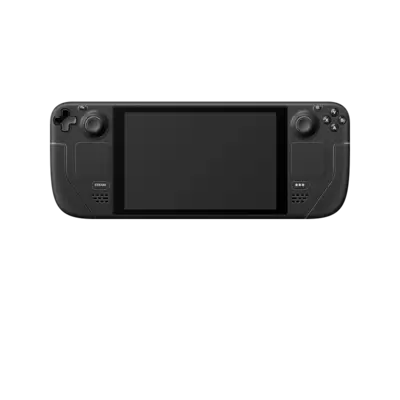

Overview
Steam runs through Flatpak on REG-Linux, offering access to Linux-native and Proton-powered Windows titles. The platform uses the steam metadata group so EmulationStation displays the Steam icon and launches Steam’s Flatpak shortcut.
Technical specifications
- Manufacturer: Valve
- Platform tag: windows
Quick reference
- Launcher: Steam Flatpak (
com.valvesoftware.Steam) - Shortcut folder:
/userdata/roms/steam(contains.desktop-style entries) - Requirements: x86_64 CPU, Vulkan-capable GPU,
/userdataon Linux-native storage (ext4/btrfs preferred) - System group:
steam,windows
Installation
Install Steam via Flatpak:
- Run
flatpak remote-add --if-not-exists flathub https://flathub.org/repo/flathub.flatpakrepo. - Install
com.valvesoftware.Steam. - Refresh EmulationStation to reveal the Steam entry (REG-Linux v40+). Launch it once to complete the first-time setup.
Alternatively, use the Flatpak Config tool ([F1] → Applications → flatpak-config) to add Flathub and install Steam via the GUI.
Configuration
Steam Play / Proton
Steam defaults to native Linux titles. To access Windows-only games:
- Open View → Settings → Steam Play.
- Enable Steam Play for supported titles.
- Optionally enable Steam Play for all other titles and select a Proton version (community builds often offer better compatibility).
- Use Manage Game → Set Steam Play Options per title when a specific Proton version is required.
Big Picture Mode
Steam is best used through Big Picture Mode when playing on a couch. Enable Start Steam in Big Picture Mode under Interface and keep the resolution at 720p or higher to avoid menu glitches.
ROMs & saves
Steam stores shortcuts inside /userdata/roms/steam. Game data installs under the Flatpak directories, and save games live inside /userdata/saves/steam.
- Linux-native games compile shader caches on first launch—expect longer load times initially.
- Windows games rely on Proton; consult ProtonDB for compatibility tips.
Controls
Steam can use Steam Input/Big Picture or custom controller mappings configured inside the client. Pair a controller through Steam’s settings and keep keyboard/mouse handy for the first launch.
Troubleshooting
- Steam fails to start from EmulationStation: launch once manually from the command line to accept the Flatpak permissions.
- Windows game crashes: try a different Proton version via Set Steam Play Options.
- DualSense/DualShock pads not detected: use Steam’s controller settings to identify the pad as a generic controller or apply the PS4 workaround described in the Steam guide.
- Flatpak install fails on NAS: keep Flatpaks on internal storage if
/userdatais network-mounted.
For additional help, consult the generic support pages.